

When working on a document, editing is just as important as writing. That’s where strikethrough Google Docs becomes a powerful and helpful tool. If you’ve ever wanted to show that text has been removed without actually deleting it, this feature is your best friend. It lets you cross out words while keeping them visible. Simple, right? Yet, many people don’t fully understand how useful it can be.
In this detailed guide, you’ll learn everything about strikethrough Google Docs—what it is, why it matters, how to use it, and how it can improve your writing process. Whether you are a student, teacher, office worker, or content creator, this guide will help you work smarter and more confidently.
Let’s dive in!
What Is Strikethrough Google Docs?
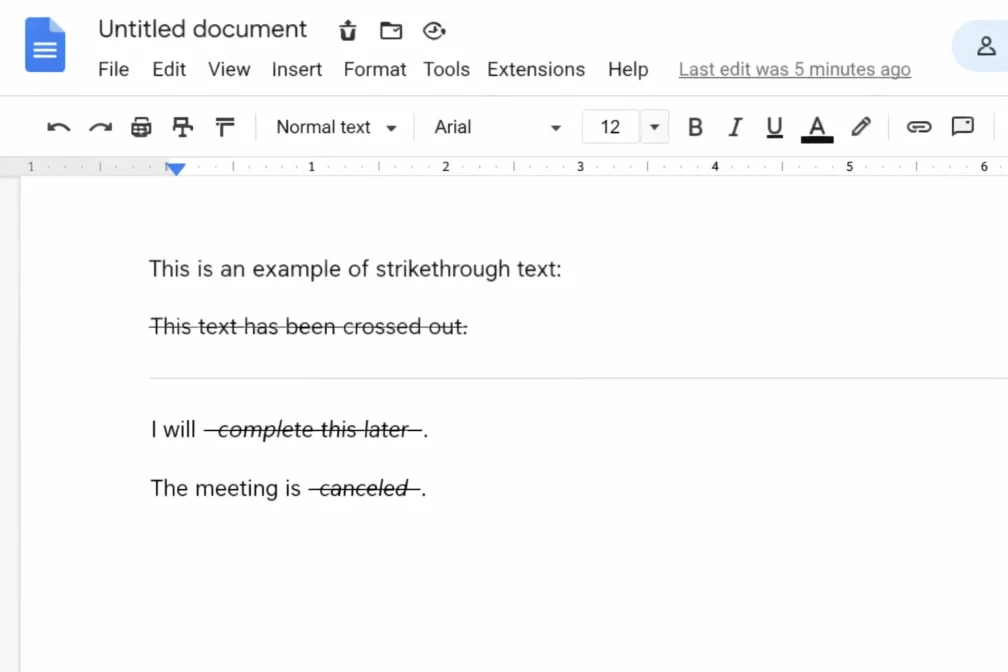
Strikethrough is a text formatting feature in Google Docs that places a horizontal line through selected text. Instead of deleting words, you cross them out.
For example:
- Original text: I will finish this tomorrow.
- With strikethrough: I will
finish this tomorrow.
The words remain visible but clearly marked as removed or changed.
Why Not Just Delete Text?
Great question! Sometimes, you don’t want to remove text completely. You may need to:
- Show edits to a teacher or boss
- Compare old and new ideas
- Keep a record of changes
- Brainstorm and rethink ideas
That’s where strikethrough Google Docs shines.
Why Strikethrough Google Docs Is Important in Everyday Writing
Editing is part of the writing journey. As the saying goes, “Writing is rewriting.” Strikethrough helps you manage that journey smoothly.
Here’s why it’s important:
- It keeps your original ideas visible.
- It helps teams track changes clearly.
- It improves collaboration.
- It saves time when reviewing documents.
- It avoids confusion during editing.
Imagine working on a group project. Instead of deleting someone’s idea, you simply strike it through. Everyone can still see it, discuss it, and decide what to do next. Easy and respectful!
How to Apply Strikethrough Google Docs on Desktop
Now let’s get practical. Here’s how you can use strikethrough Google Docs on a computer.
Using the Menu Bar
Follow these steps:
- Open your document in Google Docs.
- Highlight the text you want to cross out.
- Click on Format in the top menu.
- Choose Text.
- Click Strikethrough.
And voilà! Your text will now have a line through it.
Using Keyboard Shortcuts
Keyboard shortcuts make everything faster. Here’s how:
| Device | Shortcut for Strikethrough |
|---|---|
| Windows | Alt + Shift + 5 |
| Mac | Command + Shift + X |
Just highlight the text and press the shortcut. Done in seconds!
How to Use Strikethrough Google Docs on Mobile Devices
Using Google Docs on your phone or tablet? No worries.
Follow these steps:
- Open the Google Docs app.
- Select the document.
- Highlight the text.
- Tap the “A” formatting icon.
- Go to the “Text” tab.
- Tap the strikethrough option.
Although it takes a few extra taps compared to desktop, it still works smoothly.
When Should You Use Strikethrough Google Docs?
You might be wondering, “When exactly should I use this?”
Here are common situations where strikethrough Google Docs is useful:
During Editing
- Cross out sentences you want to remove later.
- Show corrections in assignments.
- Keep track of rewrites.
In Collaborative Work
- Suggest changes without deleting text.
- Mark outdated information.
- Show revised policies in office documents.
In To-Do Lists
- Mark completed tasks.
- Keep a visual record of finished work.
Example:
Finish homeworkCall the manager- Submit project report
It feels satisfying, doesn’t it?
Strikethrough Google Docs vs. Suggesting Mode
Google Docs also has a feature called Suggesting Mode. So, what’s the difference?
Suggesting Mode
When you turn on Suggesting Mode, edits appear as suggestions. Others can accept or reject them.
Strikethrough
Strikethrough manually crosses out text without automatic tracking.
Here’s a simple comparison:
| Feature | Strikethrough Google Docs | Suggesting Mode |
|---|---|---|
| Shows deleted text | Yes | Yes |
| Tracks editor name | No | Yes |
| Can accept/reject changes | No | Yes |
| Best for quick edits | Yes | Sometimes |
If you want a quick visual edit, strikethrough works perfectly. If you need formal review, Suggesting Mode may be better.
Creative Ways to Use Strikethrough Google Docs
Strikethrough isn’t just for corrections. You can use it creatively too!
In Blogging
Writers sometimes use strikethrough to:
- Show humor
- Correct themselves in a playful way
- Reveal hidden thoughts
Example:
“I was totally prepared for the exam. Not really.”
In Teaching
Teachers use strikethrough Google Docs to:
- Correct student essays
- Show grammar improvements
- Compare draft versions
In Business Documents
Companies may use it to:
- Update contracts
- Show policy changes
- Highlight outdated rules
It’s flexible, practical, and surprisingly powerful.
Common Mistakes When Using Strikethrough Google Docs
Even simple tools can be misused. Let’s avoid common errors.
Overusing Strikethrough
Too much crossed-out text makes a document messy. Use it wisely.
Forgetting to Remove Final Edits
Before submitting a final version, remove unnecessary strikethrough text.
Confusing Readers
If your document is formal, too many visible edits may look unprofessional.
Remember, clarity is king.
Tips to Master Strikethrough Google Docs Like a Pro
Want to use strikethrough Google Docs like an expert? Follow these smart tips:
- Combine strikethrough with bold text for clear changes.
- Use comments to explain why text was removed.
- Keep formatting consistent.
- Review your document before sharing.
- Use shortcuts to save time.
Small habits can make a big difference.
Strikethrough Google Docs in Academic Writing
Students often struggle with editing essays. Strikethrough helps by:
- Showing removed arguments.
- Comparing thesis statements.
- Keeping earlier drafts visible.
Instead of starting from scratch, you can see your progress. That’s motivating!
Teachers also appreciate clear editing. It shows effort and improvement.
Strikethrough Google Docs in Professional Settings
In offices, clarity matters. Miscommunication can cause problems. Strikethrough helps teams:
- Update reports
- Edit proposals
- Modify contracts
- Track revisions
It keeps everyone on the same page—literally!
For example, if a policy changes from:
“Employees must arrive at 8 AM.”
To:
“Employees must arrive at 9 AM.”
You can show:
“Employees must arrive at 8 AM 9 AM.”
Clear, transparent, and easy to understand.
Accessibility and Compatibility of Strikethrough Google Docs
Google Docs works on:
- Windows
- Mac
- Android
- iOS
- Web browsers
That means you can use strikethrough Google Docs almost anywhere. As long as you have internet access, your document is available.
Plus, Google Docs saves automatically. So even if your computer shuts down, your edits stay safe. That’s peace of mind!
Frequently Asked Questions About Strikethrough Google Docs
Can I remove strikethrough formatting?
Yes! Simply highlight the text again and click the strikethrough option to turn it off.
Does strikethrough affect printing?
Yes. The line will appear when printed unless removed.
Can I combine strikethrough with other formatting?
Absolutely. You can use it with:
- Bold
- Italics
- Underline
- Different font colors
Final Thoughts on Strikethrough Google Docs
In the world of writing and editing, small tools can make a huge difference. Strikethrough Google Docs is one of those simple yet powerful features that help writers stay organized, transparent, and efficient.
It allows you to:
- Show changes clearly
- Collaborate better
- Edit confidently
- Keep track of progress
Whether you’re working on homework, business reports, or creative writing, this feature helps you polish your work like a pro. So next time you’re editing a document, don’t just delete—use strikethrough Google Docs and make your editing process smarter and smoother.
After all, good writing isn’t about getting everything right the first time. It’s about improving step by step—and strikethrough Google Docs is there to help you every step of the way.